FAQ

Westside Instaprint

Frequently Asked Questions

We understand that you may have questions about our services, pricing, and turnaround times. To help you get the information you need quickly, we’ve compiled a list of commonly asked questions and their answers. If you have further inquiries, feel free to contact our team directly. We’re always here to assist you!
Please visit our services section for complete details on Westside Instaprints’ many print shop services.
Basic print jobs with no graphic design, no type setting and no proofing are usually completed within 2 business days, if not the same day. More involved print work can extend beyond 2 business days. Please call for more exact timing.
Please call for a basic quote. Please submit your files with print job details and instructions for a more exact quote.

What is Page Bleed?

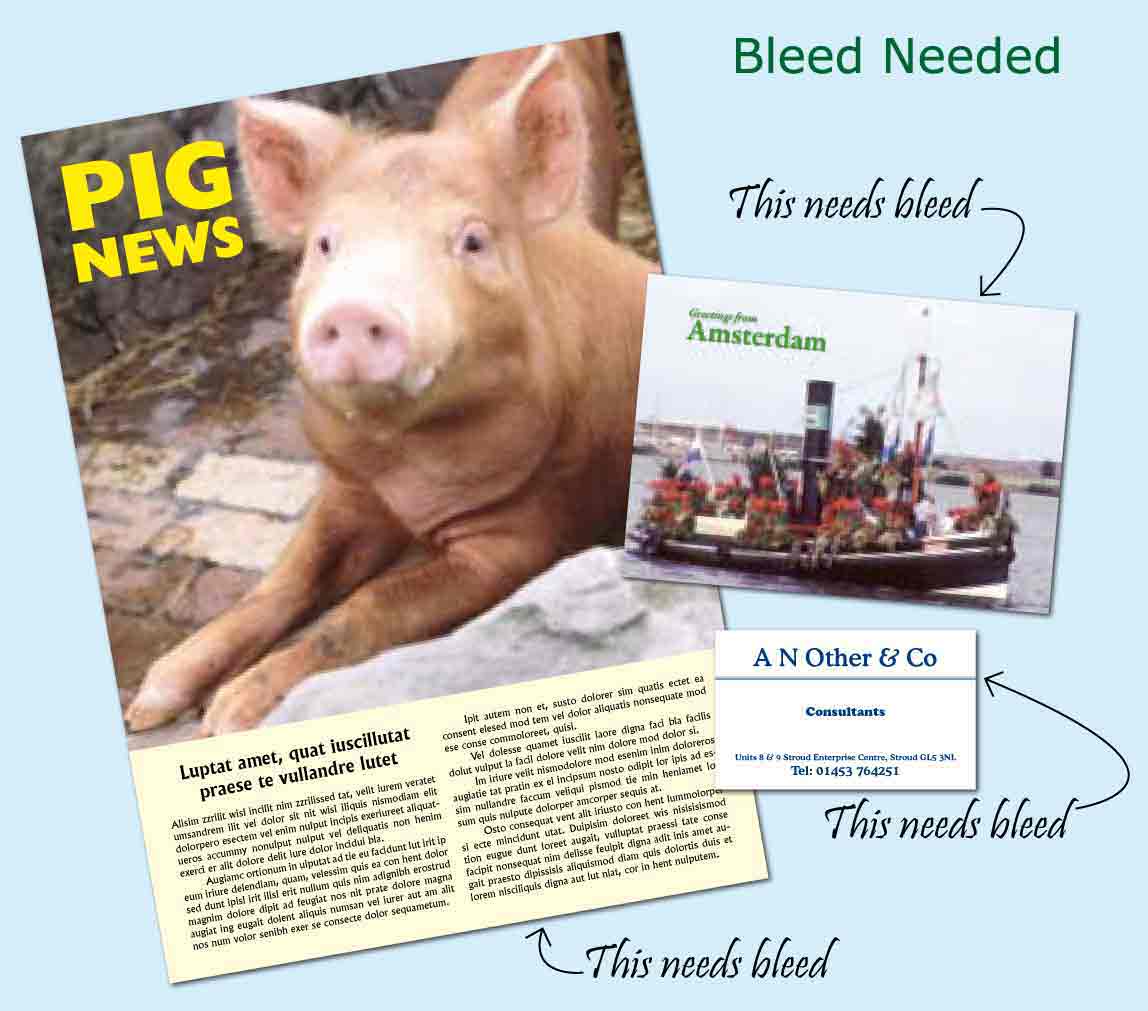
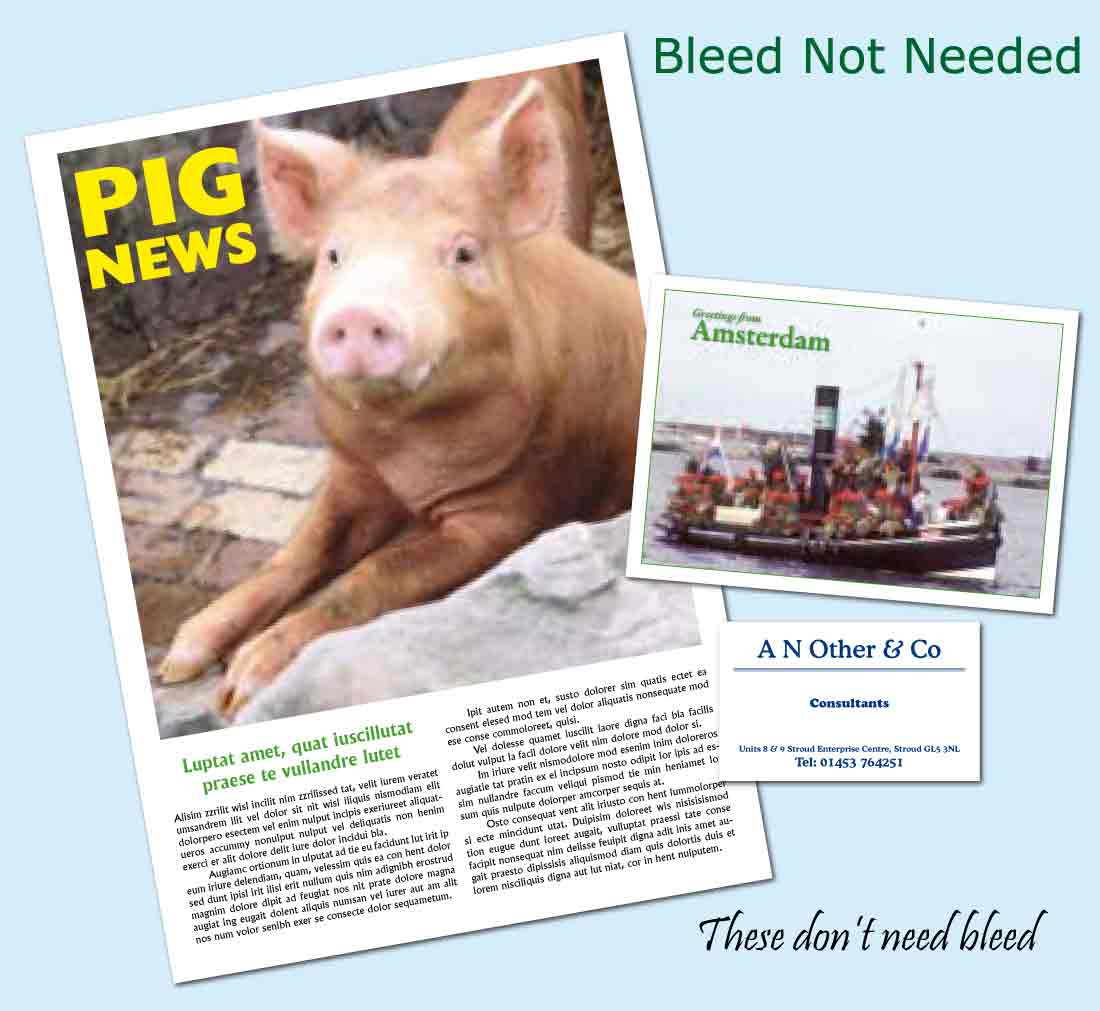
A page is said to bleed when the background or page content extends to the edge of the page with no margin. In these cases the content needs to be adjusted to extend beyond the edge of the page. Your page content needs to run beyond, “bleed”, past the edge of the desired page size. The jobs in the two images below show when bleed is and is not needed. If your job has an empty margin on all edges, then bleed is not needed.

Why do we need Bleed?

Page bleed ensures that there are no slivers of paper colour, often white, visible on the edge of finished print work. Printing presses, whether conventional or digital, can’t print right to the edge of a sheet of paper. So, if we need to print up to the edge of a sheet, we must over print on oversized paper and then trim down to the desired size. Neither printing or cutting is a totally exact process, so the page bleed is used to compensate for the small processing errors which may occur.

How Much Bleed?

Printing processes vary in their accuracy, so it is a good idea to make a greater allowance than is normally necessary. Typically we use 1/8 inch (3 mm) bleed on each side of a job. This means that any element on a page which is intended to print to the edge – graphics, picture, background colour, or whatever – must continue 1/8 inch (3 mm) over the edge of the page. This additional information will be trimmed off when the job is finished. In addition to the bleed outside the edge of a page, it is usual to allow a “safety zone” inside the edge of a page. Any important elements, such as text or graphics, which are intended to be contained on the page and not bleed off should be kept inside this zone. The size of this zone will vary according to the printing process, but should be a minimum of 1/8 inch (3 mm). If you can allow a larger safety zone, say 1/4 inch (5 mm), it often gives a better visual appearance. It is also necessary to be aware that some machines have larger unprintable areas at the edge of the sheet. This is particularly important when designing jobs that do not have bleed and will be printed on “pre-cut” (“cut-size”) sheets, i.e. normal 8.5×11 inch (A4) paper. Here it is usually necessary to extend the safety zone, or margin, to 1/4 inch (5 mm) or more. We can provide more precise information depending on the job to be printed.

What are Bleed Marks?

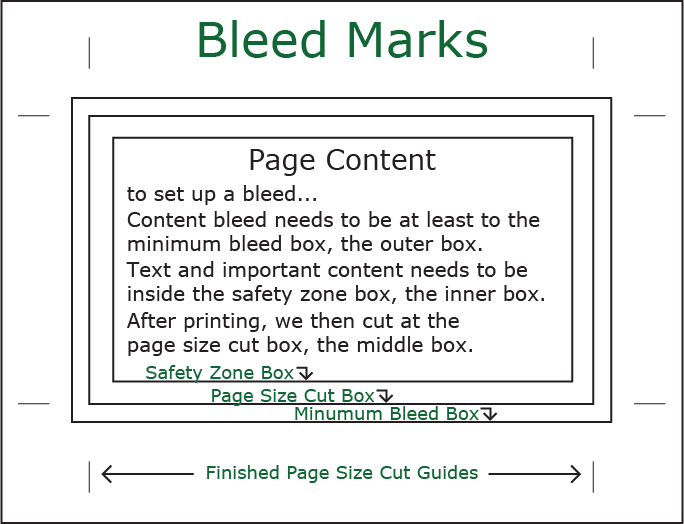
Bleed marks are solid or dashed lines along and around the edges and corners of the page to be printed, see image below. Bleed marks help both the designer and printer produce the desired finished product.

Designers can turn on bleed marks in most design software or add bleed marks manually. Bleed marks help designers extend content bleed out far enough and bleed marks also help designers keep important content out of harms way within the safe zone bleed marks. The print shop will use bleed marks as guides for trimming the page accurately and correctly.

In the image below, The outer box bleed marks indicate the minimum extent bleed content needs to reach. The middle box indicate the border of the desired finished page size and are usually not designated by any solid or dashed lines The bleed marks extending out from the corners are inline with the desired page size border and are used as a cutting guide by the print shop. The inner box bleed marks are used to the indicate the safe zone where content will not be clipped by printing and cutting errors. The inner box bleed marks can also indicate the maximum printable area, because some printers are not capable of printing close to the edge of a page.

Bleed marks are not required for print bleed work. A print job with no bleed marks can be completed accurately and without error, but the more bleed marks included the less chance of error in design and print finishing.

How do I Provide Bleed?

This depends on the software being used to create the artwork. We’ll be happy to provide specific advice for your job. Generally speaking, when using page layout software (Adobe InDesign, Quark XPress, Microsoft Publisher, etc.) set the document size to be the size of your finished job and simply extend the elements that bleed over the edge of the page. Then export/save as PDF, making sure that the PDF page size is bigger than the job’s finished page size.

If creating artwork in an image editing program, e.g. Adobe Photoshop, set the image size initially to be big enough to include the bleed. For example, if creating a standard postcard which has a finished size of 4×6 inches (148×105 mm), make your image 4.25×6.25 inches (154×111 mm) to allow 1/8 inch (3 mm) all round. It is then a very good idea to set ruler guides to mark the bleed area and safety zone to remind you not to put important information in positions where it is liable to be trimmed off.

What are Printed Colors?

Printed colors are formed by the union of 4 ink colors, Cyan, Magneta, Yellow and Black. This is known as CMYK or 4 color process printing. In recent years this process has been expanded to include more inks, which increases the spectrum/palette of printable colors available. Unfortunately printers are not able to faithfully duplicate every CMYK color exactly or continually on every type of print media, due to technology and design limitations. Color standards and printer calibration help to minimize these effects.

What are LCD Monitor Colors?

LCD colors are formed from the union of 3 colors red, green and blue, in a similiar way your eyes naturally interpret color. This color system or palette is known as RGB. The set of colors available in the RGB palette is considerably larger than the colors available for print in the CMYK palette. Unfortunately LCD design limitations, quality, software drivers and LCD fatigue often prevent LCDs from accurately displaying RGB colors. Higher end LCDs come with color calibration software to mitigate these factors. Digital cameras and scanners only produce RGB color images. These images display excellently on LCD monitors.

How Can I Control Print Colors?

Design your documents and artwork destined for print media with the CMYK color palette. All current popular graphics and page editing applications let you choose colors from the RGB palette or the CMYK pallete. Unfortunately some software more than 3 years old may not have the CMYK palette available. Save your graphics with the color palette information embedded in the graphics file. Embedding color information is one of the “save options” for most file types in most graphics software. Obtain proofs and make adjustments. Designing within the CMYK palette will reduce your choice of colors, but it will give a more accurate design perspective for print media. Unlike LCD displays, print media colors can be enhanced with the wide variety of print media and textures available.

Do I need to use the CMYK palette?

No. Most documents and graphics submitted to print shops use the RGB color palette. Scanners and digital cameras only produce RGB color images. Westside Instaprint will find the closest matching colors between the RGB and CMYK palettes for every color in your files. Photographs and Graphic design effects, transitions, gradients, fades, blurs, anti-aliasing etc.. are ussually not noticablely affected by the RGB to CMYK color transition. You will most likely notice a color shift in large rich vibrant color areas. Logos often have only a few colors, so you may need a CMYK version of your logo for print media to keep you logo colors consistent every time your logo is re-printed.
Vector graphics are mathematically defined points, lines and curves. Vector graphics do not distort when enlarged or reduced. The most common types of vector graphics are fonts and logos. Adobe Illustrator is the most common vector graphics editor. The mosts common vector file format is .ai (made with adobe illustrator). Highly refined pixel details are difficult to achieve with vector graphics.

Raster graphics are made up of individually defined pixels (coloured dots). Raster graphics are also known as bitmaps or just images. Raster graphics can not be enlarged or reduced without distortion. Photographs are raster graphics. Adobe Photoshop is the most popular raster graphics editor. Common raster graphic file formats are jpg/jpeg, png, tiff, bmp and gif. Digital images, raster files, that display nicely on a computer lcd monitor often look blured on print media, due to print media’s high resolution.
Whenever your graphics design includes raster graphics then resolution, print size and viewing distance are important for good quality printing. 300 dpi resolution or better digital source raster graphics is considered optimal, because of print media’s high resolutions, although as low as 72dpi can be printed with acceptable results.

If you are printing only vector graphics then you have all the resolution that you need. Vector graphics can be enlarged and printed at any size without distortion, due to the nature of vector graphics. Vector graphics files can have raster graphics embedded in them, and then resolution, print size and viewing distance must be considered for these vector files with embedded raster graphics.

Raster graphics cannot be enlarged or reduced without distortion. Some distortion is acceptable if the printed product is going to be viewed from a distance and the distortion does not adversly effect the content of the graphics. If you are scanning pictures or documents to be printed, scan at the highest resolution available and save the scans as .tiff files. If you save the scans as .jpeg, some image data will be lost defeating the purpose of scanning at high resolution. Please call for clarification on your specific design.
Computers identify file types by the file name extension (suffix) after the dot in a file name, although most computers will not display the name extension. Right click on the file and click “Properties” or “Get Info” to display the file type.

Westside Instaprint accepts the following file types:
.pdf (a text document with images format),
.eps (a text document with images format),
.ai (Adobe Illustrator files),
.psd (Adobe Photoshop files),
.indd (Adobe InDesign files),
.tiff(a no data loss raster image format),
.bmp(a no data loss raster image format),
.plt (plot files),
.jpg, .jpeg, .png, .bmp, .gif (image files),
.doc, .docx (Microsoft Word files),
.xls, xlsx (Microsoft Excel files),
.pub (Microsoft Publisher files),
.pps (Microsoft Power Point Presentation files),
.qxd,.qxp (QuarkXPress),
No .dwg (AutoCAD data files, Please Call),
No CorelPaint or CorelDraw files (Please Call).

Vector files are preferred. Vector files are produced by Adobe illustrator. Vector files are preferred because they maintain their integrity (do not distort) when reduced or increased in size. Non-vector files, image/bitmap/raster files, will distort when reduced or increased in size. Non-vector files are only cleanly reproducable at one size, the size they were originally created at. If your documents include non-vector graphics, please have the non-vector graphics at as high a resolution as possible. Non-vector images borrowed from the web will print very coarsely/badly, because web graphics are only 72dpi. Please call for details.
We have all the standard Mac, Windows, Adobe and Office fonts. If you have fonts from any other sources please choose to embed them when you save your files or submit your font files when you submit your documents for printing. We can replace missing fonts with close fitting substitute fonts but this can dramatically change the over all look or feel of the document.
There are three main ways to get files to Westside Instaprint over the internet. Email, Cloud storage and Westside Instaprint’s file sending web page. Email has size limits between 10-20 Megabytes imposed by your internet service provider. Westside accepts shared links to files in cloud storage accounts, such as Google Drive, Microsoft Onedrive, Apple iCloud, Dropbox and others. Our file sending web page is also available. Files up to 2000 Megabytes in size are transferred directly to Westside Instaprint using your web browser.
This is a basic list of details Westside Instaprint will need to know to complete your print job.
  • Quantity
  • Size
  • Colour or Black and White
  • Single sided, Double sided, Booklet, Brochure, Flyer, Pamphlet, etc..
  • Paper Weight
  • Paper Un-Textured or Textured
  • Paper Gloss or Matte
  • Finishing – Stapling, Hole punch, Binding, Folder, Perforating etc.
Page layout software combines raster and vector graphics to create artwork for print media. Page layout software is very good at aiding in the design of graphics that will be displayed on print media. Print media can be anything from business cards to large signage. Adobe Indesign, Microsoft Publisher and Quark XPress are the most popular page layout software applications.
Be careful about using photographs or non-uniform graphics for text backgrounds, the text can be very hard to read. The secret is to lighten or contrast the text background a lot more than you may think is necessary. Use a photo editing program like Adobe Photoshop or let Westside make the adjustments.